
Managing runtimes
List, start, pause, resume, reset, and connect to workspace runtimes from the CLI and TUI.
Use the CLI to manage runtime compute and the TUI or App to attach an interactive session. A runtime’s credential belongs to the sandbox, not to whichever client asked for it, so another device owned by the same user can connect without interrupting the first.
List what’s there
Section titled “List what’s there”dn runtime listdn runtime list --minedn runtime list --jsondn runtime get airt-scout-80The list shows every runtime in the active workspace with its status,
name, key, and project. Details include the current sandbox, expiry,
and billing totals when the runtime is running. get takes either the
runtime key shown in the list or its UUID.
A runtime belongs to whoever created it. You can see your colleagues’
runtimes, because reading spans the workspace, but you cannot start,
pause, resume, or reset one — those answer 403. Runtimes you do not own
are marked read-only in the list, and --mine leaves them out
altogether. With --json, each row carries owned_by_me and
created_by.
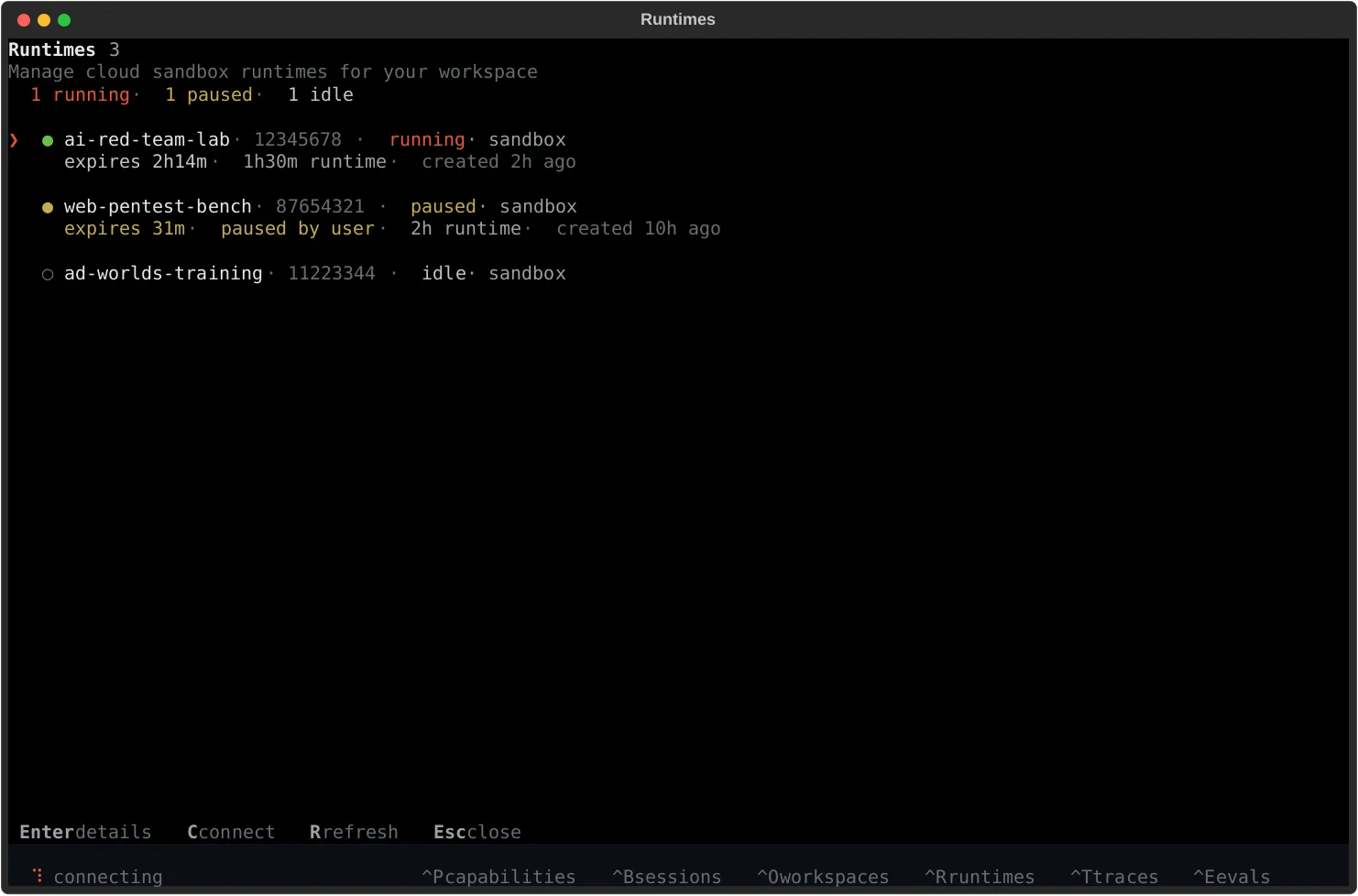
From the TUI, press Ctrl+R (or /runtimes) to open the runtimes
screen. Type into the search row to filter by runtime key or ID, provider
sandbox ID, project, provider, or state — structured filters like state:running,
provider:e2b, project:default, and connected:yes work in the
same field. The list refreshes automatically every few seconds, and
n creates a new runtime in the active project without leaving the
screen.
Start a runtime
Section titled “Start a runtime”# start a specific runtime by its key, as shown in `dn runtime ls`dn runtime start airt-scout-80
# ...or by UUIDdn runtime start 7c1e2d4f-9e0a-4b6d-8c3f-2a1b5d7e9f01
# start the only runtime in a project, or create the first onedn runtime start my-project
# ensure and start from a runtime.yamldn runtime start --file runtime.yamlStarting an idle runtime provisions a fresh sandbox. When it comes up, the CLI prints one
Cold start: line saying how long that took and where the time went: the platform’s own
overhead before it reached the sandbox provider, provisioning, the runtime’s boot, dependency
installs for bound capabilities, and how long the platform took to notice the runtime was ready.
The same breakdown is returned by the API as instance.startup_timing on the start and get
responses, with the platform’s and the provider’s individual steps under phases, so a slow
start can be attributed without a log dive.
Runtimes prefetch trace-storage credentials in the background during startup.
Large trace values upload without delaying model requests; if an upload is still
pending or fails when its span closes, the value stays inline in the trace.
Runtime debug logs include Chat timing stages storage_ready and object_stored,
correlated by session and turn, to separate storage setup from upload time.
There is no --egress on start. A runtime’s outbound scope is a property of its stored
configuration, not of one start, so set it with dn runtime config-set and it applies to every
sandbox the runtime provisions from then on. The platform re-checks the stored targets on each
start rather than trusting the check made when you saved them — a deployment that stopped
permitting a target since then fails the start naming it, instead of bringing up a sandbox missing
the access it was configured for. See Outbound network
scope.
Starting a running runtime leaves the live sandbox untouched and returns
its credential. Retrying start after a lost response is safe: the retry
returns the same credential and disconnects nobody.
Runtime credentials belong to the user who started the current sandbox. Another device signed in as that user can attach; another workspace member cannot. Reset the runtime when ownership needs to change.
If the durable configuration, capability set, or build source changed since the sandbox was provisioned, the CLI reports the drift but does not rebuild automatically. Applying the change costs everything inside the current sandbox, so use an explicit reset:
dn runtime reset airt-scout-80 # prompts; -y to skipdn runtime start airt-scout-80 # provision against the current configFrom the TUI, use the runtime’s Reset action, then start it.
<target> is read as a runtime key or UUID first, and falls back to a
project. A runtime key that belongs to someone else is read as a project
instead, so starting a shared project by name lands on your own runtime.
When you own several runtimes in a project, starting the project picks a running one first, then a paused one — which is resumed — then the one keyed to the project, then your most recently created. To start a different one, name it directly.
From the TUI, select a runtime and press s (or use the detail view’s
Start runtime action) to start it.
Connect to a running runtime
Section titled “Connect to a running runtime”Connection state is tracked separately from runtime state — a runtime
can be running without being the one your current TUI session is
attached to.
- From the TUI, press
con a running runtime, or open its detail view and pickConnect. - From the App, open the runtime and use the session picker.
- To connect from a different machine, point
dnat the runtime server URL:dn --runtime-server https://…(covered in Local runtime server).
The TUI’s detail view is state-aware: idle runtimes offer Start,
running runtimes offer connect/disconnect, pause, logs, reset, and
Extend expiration, and paused runtimes offer resume, logs, and
reset.
Pause, resume, and extend
Section titled “Pause, resume, and extend”Pause suspends the sandbox without losing state. Credits stop accruing
immediately. Resume restores the same sandbox — session history,
capability bindings, working state, and managed dn/* model access all
come back. The platform extends the sandbox’s existing managed-model key
before it restores compute, so a runtime can resume after that key’s
original expiration without replacing its injected credential.
dn runtime pause airt-scout-80dn runtime resume airt-scout-80dn runtime keepalive airt-scout-80 --extend-seconds 900Resume restores compute but does not return a credential. Run
dn runtime start airt-scout-80 afterward when the caller needs one.
Fetching it disconnects nobody.
Extend expiration (+5 min) pushes the sandbox’s expiry window out
when you need more time. Sandboxes start with a one-hour window by
default, and the platform caps any extension at your organization’s
sandbox runtime limit — and, on the hosted platform, at what your
remaining credits cover. Use it proactively; the sandbox is
terminated automatically when it times out, and termination
is final for that sandbox.
Reset for a clean environment
Section titled “Reset for a clean environment”Reset discards the current sandbox and returns the runtime to idle
without losing the runtime’s identity, bindings, or project
association. It also destroys that sandbox’s credential, which disconnects
every attached client — reset is how access is withdrawn.
The next start reprovisions fresh compute against the current durable
configuration.
Reset from the TUI detail view. The runtime’s own identifier — and anything attached to it, like sessions and capability installs — is preserved.
When a sandbox is terminated
Section titled “When a sandbox is terminated”Sandboxes transition to the final killed state when they time out,
when you delete them explicitly, or when your organization runs out
of credits. A runtime whose sandbox was killed returns to idle — a
subsequent start will provision a new sandbox. Terminal deletion also
revokes the deleted sandbox’s managed-model key.
Running out of credits terminates the sandbox. The record may show it
paused with a pause_reason of insufficient_credits — that marks
why compute stopped, but the sandbox itself is gone. After a top-up,
start the runtime again: durable configuration and capability
bindings come back with the fresh sandbox, in-sandbox working state
does not.
Cleaning up
Section titled “Cleaning up”Runtime records can’t be deleted — an idle runtime holds no compute
and costs nothing, and the record is removed with its project. To
reclaim compute, reset the runtime or delete the sandbox directly:
dn sandbox delete 3f8a1c2e-7b4d-4e0f-9a6c-1d2e3f4a5b6cDeleting a sandbox is the CLI equivalent of a reset: the runtime
returns to idle and keeps its identity and bindings.
See also
Section titled “See also”- Configuration — what persists across sandbox replacement
- Scoping network access — bounding what a runtime’s agent can reach
- Sandboxes — the compute ledger behind every runtime
dn runtimereference — every subcommand and flag