
Agent & model
Switch agents mid-conversation, pick a model, and tune thinking effort — from the TUI dialogs or slash commands.
The agent is the persona; the model is the brain. You pick both the same way you pick everything else in the TUI — a keyboard shortcut for the dialog or a slash command when you already know the name.
Switching agents
Section titled “Switching agents”Press Ctrl+A to open the agent dialog. It lists every agent the current runtime has loaded, with the capability it came from and its model override (if any).
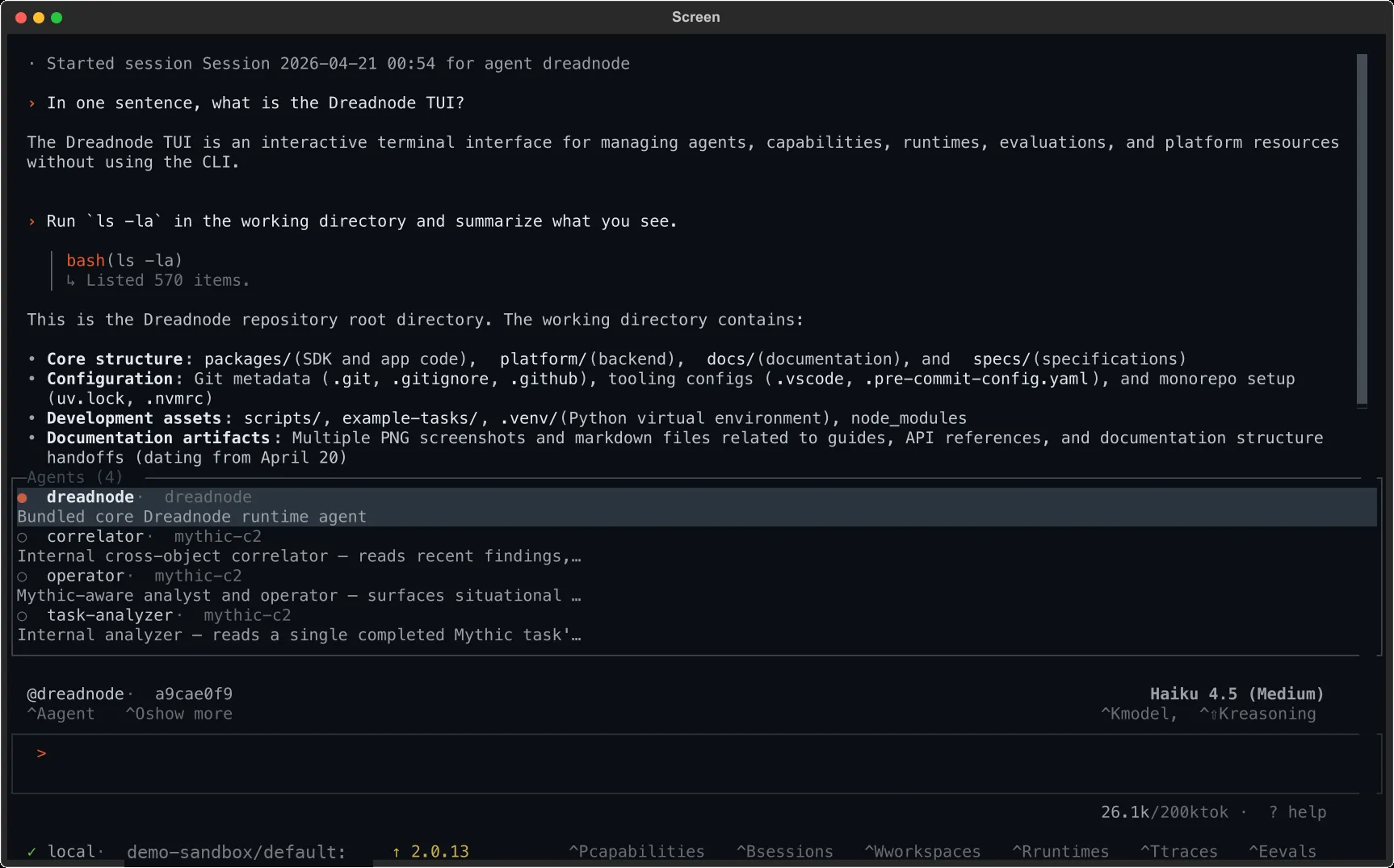
Highlight an agent and hit Enter to switch. If a session is active the conversation continues on it — no new thread, no lost history, the new persona takes effect from the next turn. If no session is active, the dialog starts one with the chosen agent.
Slash equivalents
Section titled “Slash equivalents”| Command | What it does |
|---|---|
/agents | Print the agent list into the conversation |
/agent <name> | Switch the session’s active agent to <name> |
The default agent is always present, even when no capabilities are loaded. Other agents appear after you install a capability that ships one.
Routing one message to a different agent
Section titled “Routing one message to a different agent”Typing @ in the composer opens an agent picker. Select one (Tab or Enter), keep typing, and submit — the composer sends @agent message..., which routes that single message without changing the session’s active agent:
@web-pentester take a look at the /admin endpointsCtrl+A is for permanent switches; @mention is for one-offs.
Choosing a model
Section titled “Choosing a model”Press Ctrl+K to open the model browser — the same full-screen surface as /models. It lists Dreadnode platform-hosted models first and your BYOK models below, with search, provider filtering, context, and pricing. Press Enter to switch to the highlighted model.
Platform-hosted models bill against your Dreadnode credits. BYOK models use the keys you configured — see Authentication for the environment variables. To add your own BYOK models to the browser, use Chat models in settings.
For platform-hosted models, the gateway’s reported tool-calling and prompt-caching support takes precedence over local model metadata. If a metadata lookup fails, later turns retry after a 30-second cooldown, so a temporary outage does not permanently disable tool calling.
Slash equivalents
Section titled “Slash equivalents”| Command | What it does |
|---|---|
/model | Print the active model into the conversation |
/model <id> | Switch to <id> (e.g. openai/gpt-5) |
/models | Open the model browser (same as Ctrl+K) |
In the /models table, Price is source-aware:
- Dreadnode-hosted (
dn/*) rows show inference credits per 1M tokens (input/output). - BYOK rows keep provider dollar rates (
$input/$output).
ctx: and price: filters still evaluate numeric catalog metadata so comparisons stay consistent.
Per-agent model overrides
Section titled “Per-agent model overrides”A capability can pin a model on one of its agents — shown in the agent dialog after the description. When you switch to that agent, its model override takes over until you change it with Ctrl+K or /model. Your override wins and sticks for the rest of the session.
Tuning thinking effort
Section titled “Tuning thinking effort”Models in the Claude, GPT, and Gemini families expose extended-thinking modes. Press Ctrl+Shift+K to cycle through them for the active model:
| Provider | Levels |
|---|---|
| Anthropic | low, medium, high, max |
| OpenAI | low, medium, high |
| Gemini | high, max |
Each press advances to the next level, and one more press past max turns thinking off entirely. The context bar shows the current level next to the model name.
Slash equivalents
Section titled “Slash equivalents”| Command | What it does |
|---|---|
/thinking | Print the active level |
/thinking on | Enable thinking at the provider’s lowest level |
/thinking off | Disable thinking |
/thinking <level> | Set a specific level (e.g. high) |
/thinking show | Show reasoning inline in the conversation |
/thinking hide | Hide reasoning from the conversation |
Higher effort costs more tokens and takes longer. Start at low or medium for day-to-day work; escalate to high or max when the agent is stuck or the task is genuinely hard.
What persists across sessions
Section titled “What persists across sessions”- The agent you selected carries into new sessions until you pick a different one.
- The model carries the same way. A fresh install starts on a platform-hosted model if your org has one enabled, otherwise it falls back to
anthropic/claude-opus-4-6(which requires your own provider API key). - Thinking effort is remembered per model, so flipping between models does not lose your tuning.
If you need to inspect or change the stored values outside the TUI, the profile config in ~/.dreadnode/ is where they live.