Overview
Get oriented in the Dreadnode TUI with the layout, high-value keybindings, slash commands, and the screens you will use most.
What the TUI is
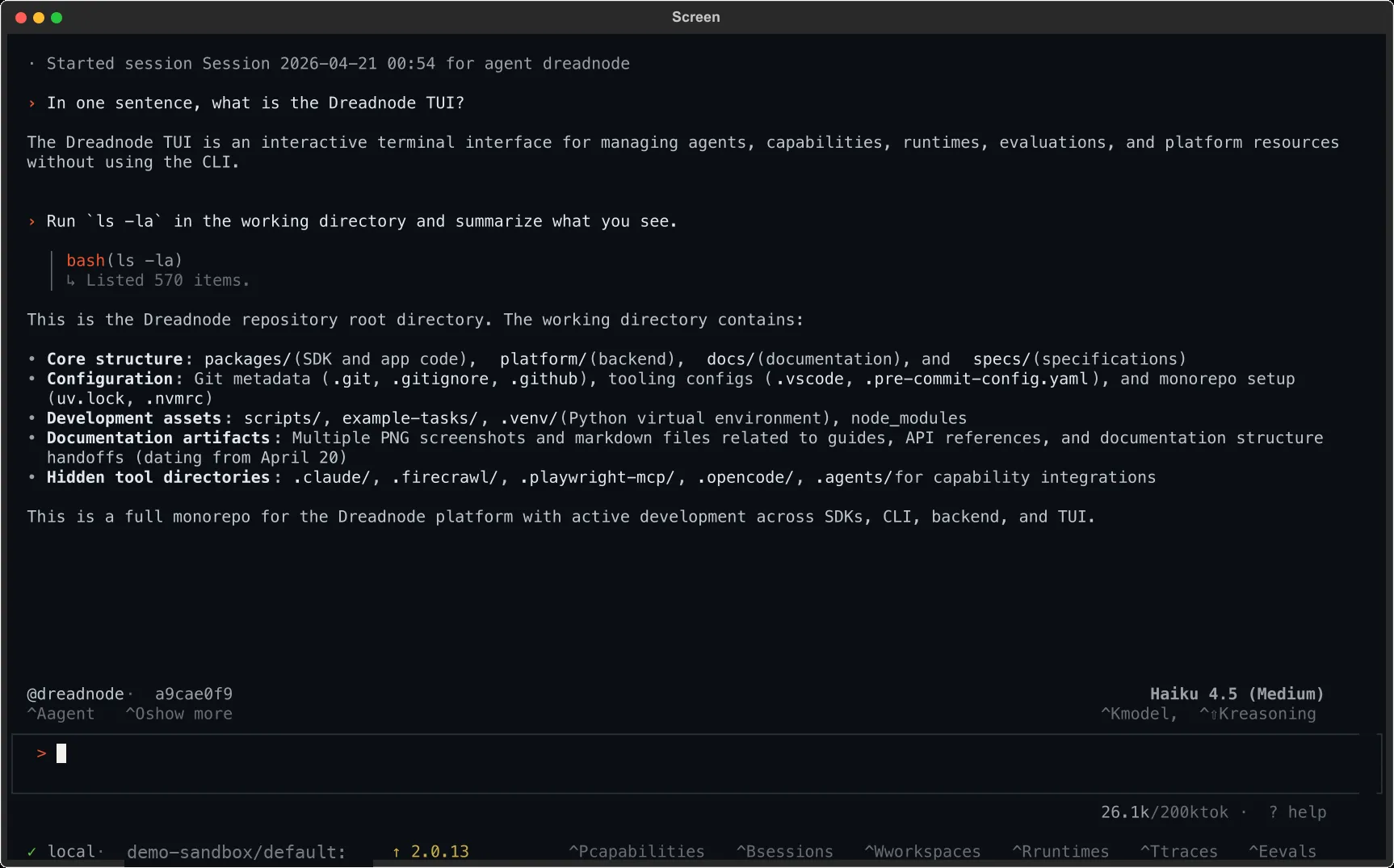
Section titled “What the TUI is”The Dreadnode TUI is the full-screen terminal app you get when you run dreadnode or dn.
Use it in three modes:
- type a normal message to chat with the current agent
- start a line with
/to run a TUI command - start a line with
@agent-nameto route one prompt to a specific agent - start a line with
!to run a shell command on the connected runtime
If you do not specify an @agent-name, the runtime uses its configured default capability. In a
normal SDK runtime, that default is the bundled @dreadnode agent. It is tuned for Dreadnode
platform workflows first, then routes to more specialized capability agents when the task calls for
them.
Bare quit, exit, and :q also leave the app.
High-value shortcuts
Section titled “High-value shortcuts”| Key | What it does |
|---|---|
Enter | send the current message |
Shift+Enter | insert a newline |
\ + Enter | insert a newline |
/ | open the built-in slash-command flow |
@ | mention an agent for one prompt |
! | switch the composer into shell mode |
? | show inline help |
Esc | dismiss overlays, clear search, or interrupt when possible |
Up / Down | browse prompt history |
j / k | scroll the conversation |
Ctrl+U / Ctrl+D | half-page scroll |
g / G | jump to the top or bottom |
Tab | cycle focus |
Ctrl+N | start a new session |
Ctrl+A | open the agent picker |
Ctrl+K | open the quick model picker |
Ctrl+Shift+K | cycle reasoning effort |
Ctrl+B | open the session browser |
Ctrl+W | open the workspace and project browser |
Ctrl+O | toggle tool output mode |
Ctrl+P | open capabilities |
Ctrl+R | open runtimes |
Ctrl+T | open traces |
Ctrl+E | open evaluations |
F5 | open console logs |
F9 | run the updater |
y | copy the last assistant response |
Session flow
Section titled “Session flow”Most day-to-day work starts with a normal message in the composer, then branches into a few common control points:
/newfor a clean session/sessionsorCtrl+Bto search or resume older sessions/renameto keep sessions recognizable/exportto save the transcript/compact [guidance]when a long thread needs to shrink before the next step
The session browser supports quick keyboard flow:
- type to search sessions by preview text or ID
Enterto open the highlighted sessionNto create a new oneDto queue the current session for deletionEscto back out
The browser also acts as the live session-status surface for the current runtime. Expect badges for:
- the active session
- background sessions that are still running
- sessions waiting on approval or human input
- unread activity, queued messages, or stale replay state after reconnect
The header keeps the model and current session visible, and shows a compact background summary when other sessions are still busy or blocked.
Slash commands at a glance
Section titled “Slash commands at a glance”Session and agent commands
Section titled “Session and agent commands”| Command | What it does |
|---|---|
/help | show inline help |
/new | create a new session |
/reset, /clear | reset the current session |
/sessions | browse and resume sessions |
/rename title | rename the current session |
/export [filename] | export the current transcript |
/compact [guidance] | compact older conversation history |
/agents | list loaded agents |
/agent name | start a session with a specific agent |
/model [provider/model] | inspect or change the active model |
/models | open the full model browser |
/pull <type://[org/]name[@version]> | cache or install a Hub artifact for local reuse |
/thinking <level> | change reasoning effort |
/reload | rebuild the runtime capability registry |
Identity and context commands
Section titled “Identity and context commands”| Command | What it does |
|---|---|
/login [api-key] [--server url] | authenticate and restart the runtime |
/logout | disconnect the active profile |
/whoami | show the current identity |
/profile | open the saved-profile picker |
/workspace key | switch workspace and restart the runtime |
/workspaces | list available workspaces |
/projects [workspace] | list projects in the current or named workspace |
Screens and operations
Section titled “Screens and operations”| Command | What it does |
|---|---|
/runtimes | inspect workspace runtimes |
/environments | browse and filter available environments and tasks |
/capabilities | manage runtime capabilities |
/skills | browse packaged skills |
/mcp | inspect MCP server health |
/secrets | inspect provider presets and secrets |
/traces | browse project traces |
/spans | browse raw local session spans |
/sandboxes | inspect active sandboxes |
/evaluations | inspect evaluations |
/console | view backend logs |
/tools <mode> | change tool rendering detail |
/version | show the installed Dreadnode version |
/update | update the installed CLI |
/copy | copy the last assistant response |
/quit | exit the TUI |
Use /thinking on|off|low|medium|high|max to change reasoning effort and
/tools compact|expanded to switch between dense and verbose tool rendering.
The / slash-command flow is reserved for built-in TUI commands. Skills are browsed from
/skills, then inserted into the composer as /<skill-name>.
/skills includes packaged capability skills from currently enabled capabilities plus native SDK skills. The built-in
/dreadnode-cli skill is useful when you want the default agent to answer in exact dn or
dreadnode commands, keep the CLI group boundaries straight, and point you to the nearest TUI
surface when that helps.
Practical operator flow
Section titled “Practical operator flow”When you are working inside a repo or target environment, this is the shortest path through the TUI:
- Launch
dreadnode. - Authenticate if needed.
- Ask the first question in plain language.
- Add a capability with
Ctrl+Pif you need more agents, tools, or skills. - Switch models with
Ctrl+Kwhen the task changes. - Use
/traces,/evaluations,/sandboxes, or/consolewhen you need to inspect what the runtime actually did. - Use
/spanswhen you want the raw localspans_<session>.jsonlfile for the active session. - Use
/compactbefore a long session gets too large.
From here, use Sessions and Traces for transcript and trace review, Authentication for profiles and workspace changes, Models and Selection for live model switching, Capabilities for runtime extensions, Runtimes for environment state, and Evaluations for job monitoring.