
Conversation
Read the conversation as it streams — tool calls, thinking, queued messages, and the surfaces that tell you what's happening.
The conversation is the feed. Everything the agent does — stream tokens, call a tool, read a result, think out loud — lands in it as it happens. The rest of the TUI exists to frame that feed: the context bar above it tells you what’s on deck, the composer below it queues your next move, the status bar anchors connection health at the bottom.
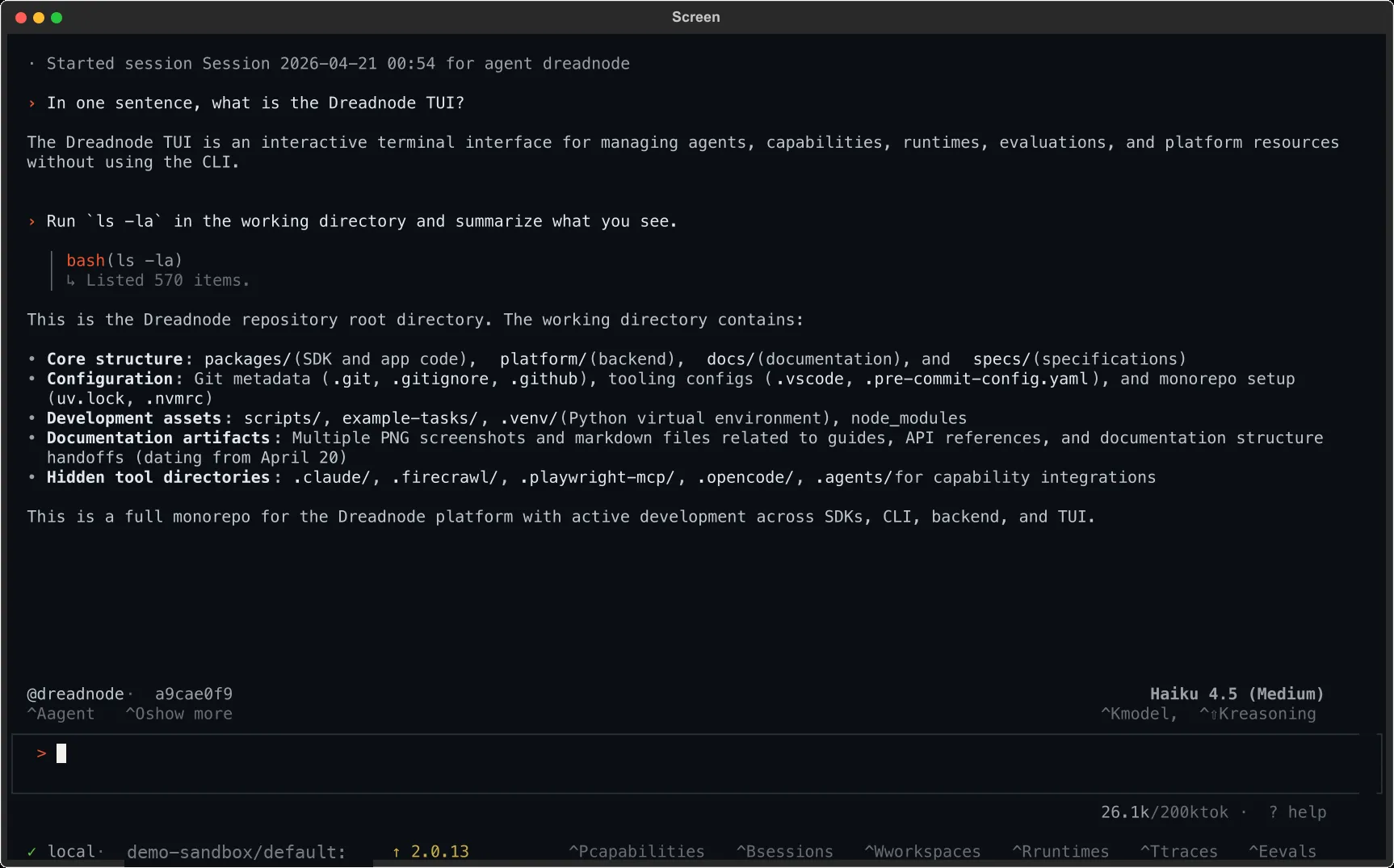
The context bar
Section titled “The context bar”The bar just above the composer is the one-glance answer to “what is this session doing right now?”
@red-teamer · fix-auth-bypass · active Opus 4.6 (High)^A agent ^O output ^K model, ^⇧K reasoning@agent— the active agent. ClickCtrl+Ato swap.- Session label — title you gave it with
/rename, or the first user message. - Status —
activewhile the agent works,awaiting …when it’s paused for you (approval, input, or anything else), blank when idle. - Model (effort) — the model and its thinking level, if any. Click
Ctrl+Kto swap.
When a background session is running, its status shows on the bar in place of the idle label so you never forget it’s out there.
See Agent & model for what Ctrl+A, Ctrl+K, and Ctrl+Shift+K open.
Reading the conversation
Section titled “Reading the conversation”Messages stream token-by-token as the agent generates them. Tool calls appear inline the moment the agent requests them, with a spinner next to the tool name while it runs:
▸ read_file 0.4s  path: packages/api/app/auth/router.py
▸ grep 1.2s  pattern: verify_token  path: packages/api/app/auth
When the tool finishes, a one-line summary replaces the spinner. Model reasoning appears inline on its own · reasoning surface — the model’s thinking (and any think() calls) shown as a dim, guttered block right in the stream, so you can see why the agent chose a tool. Use /thinking hide to suppress it when the feed gets too busy.
Compact vs. expanded output
Section titled “Compact vs. expanded output”Press Ctrl+O to toggle output mode. Compact (the default) collapses long tool results into one-line summaries; expanded shows the full tool output inline. Reasoning is shown inline regardless — Ctrl+O only controls tool-output density. Toggle expanded when something went wrong and you need the full trace; flip back to compact when the feed gets too busy to read.
Finding a phrase in the transcript
Section titled “Finding a phrase in the transcript”When you already know what you’re looking for — an error string, a tool name, a variable — use Find in transcript instead of scrolling. Type a query and the viewer searches the whole session on the server, including messages that haven’t loaded into the view yet, then steps you through the hits with the next/previous controls. The match count (3 of 17) reflects every hit in the session, and jumping to a match loads the transcript up to that point automatically.
Copying and exporting
Section titled “Copying and exporting”y(or/copy) copies the last assistant message to the clipboard./export [filename]writes the full transcript tosession-<id>.md(or the filename you pass) in the current directory.
For span-level inspection of the same session, see Traces & analysis.
Composing messages
Section titled “Composing messages”The composer looks like one line but is multiline. Enter submits (or enqueues); to add a newline, end the line with a trailing \ and press Enter, or use Shift+Enter / Ctrl+J. Up and Down scroll prompt history when the composer is empty.
Shell mode
Section titled “Shell mode”Starting a message with ! flips the composer into shell-mode visually (border shifts, placeholder changes). The rest of the composer works the same way — it’s a hint to the reader that the next line is intended as a shell command.
!rg -i todo --type pyPaste collapse
Section titled “Paste collapse”Paste two or more lines and the composer collapses the block to a placeholder:
[pasted ~42 lines]The full content goes with the message on submit. Esc clears the composer and drops the paste; deleting the placeholder before submit cancels it.
Mentioning an agent
Section titled “Mentioning an agent”Typing @ opens an agent picker inline. Pick one (Tab or Enter) and the composer fills in @agent-name — keep typing your message and submit as usual. That single message is routed to the named agent without changing the session’s default agent.
@web-pentester take a pass at the injection surfacesUse Ctrl+A or /agent <name> when you want to switch the session’s default agent for every subsequent turn.
Queueing the next message
Section titled “Queueing the next message”You don’t have to wait for the agent to finish before typing the next thing. Type into the composer while it’s working and hit Enter — the message joins a queue and shows up below the composer:
⏵ and also check the refresh-token flow ⬆ to editQueued messages ship to the agent one at a time, in order, as each turn completes. Press ↑ on an empty composer (or Esc when nothing else is in the way) to pull the most recent queued message back in for editing. The escape ladder covers the order of precedence.
When the agent pauses for you
Section titled “When the agent pauses for you”A permission prompt or free-form input prompt appears above the composer. The context bar flips its status to awaiting … until you answer. The rest of the TUI stays usable — open a different session, read the backlog, switch threads — the prompt stays pinned to this session.
See Prompts & approvals for what the prompt looks like and how approval vs. input differ.
Status bar and flash notifications
Section titled “Status bar and flash notifications”The status bar pinned at the bottom answers “is the connection OK?” and nothing else:
✓ local · my-workspace ^P capabilities ^B sessions ^W workspaces ^R runtimes ^T traces ^E evals- Green check: healthy. Amber or red: something is off — hover or open the screen named on the right.
- The shortcuts on the right are always-on chords for the screens you’ll reach for during a session. Labels collapse to keys only when the terminal is narrow.
Transient feedback — “Agent: red-teamer”, “Thinking: high”, “Background task complete” — shows up as a flash notification for a few seconds and then fades. Flashes are informational; nothing you need to act on.
Press ? or run /help any time to bring up the keybinding reference.